IPTV Buffering? 7 Things to Check Before Blaming Your Provider
3 February 2026 · 6 min read
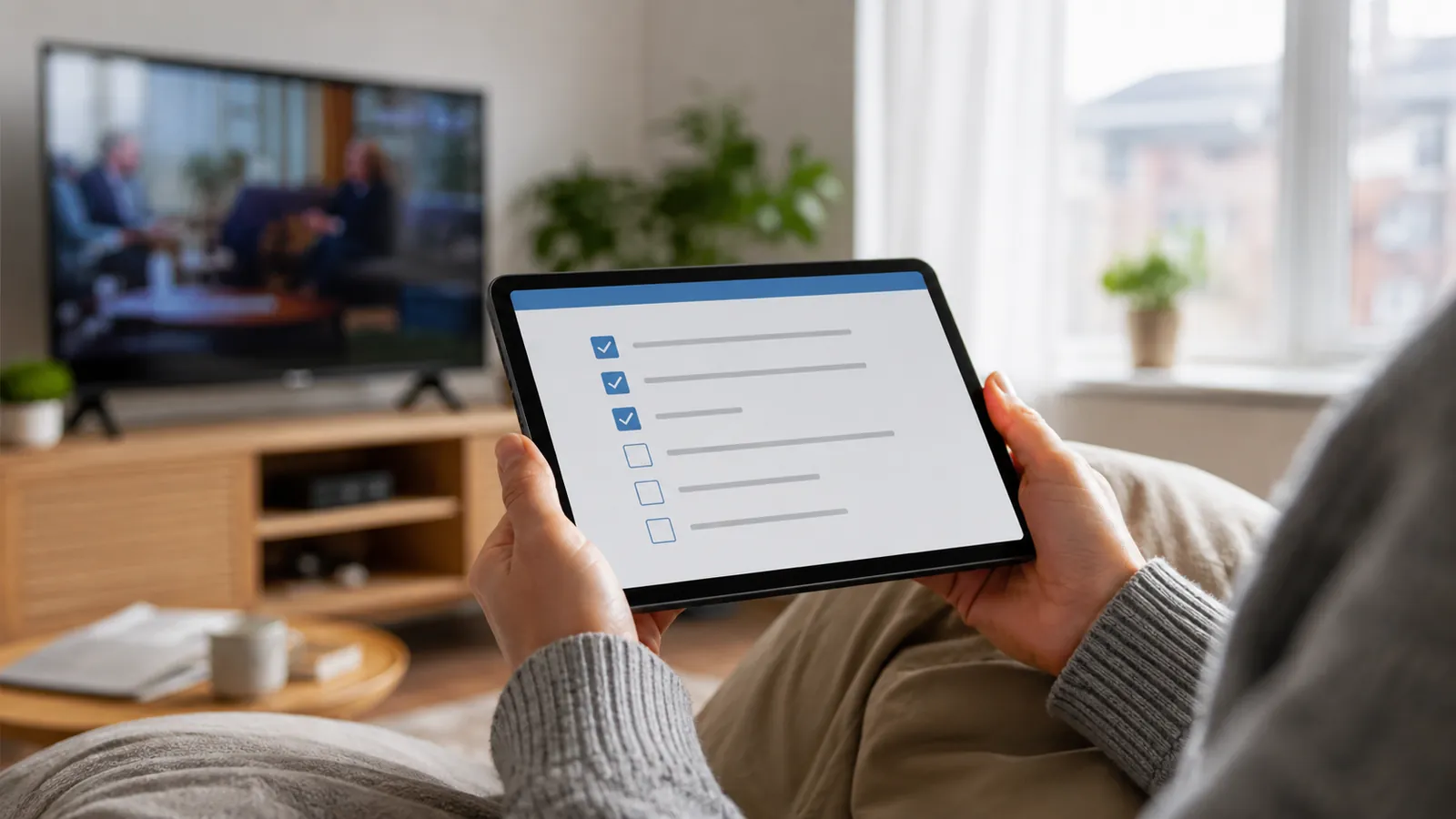
Buffering is the single most common complaint about any streaming service, and in the vast majority of cases the cause sits somewhere between your router and your screen, not with the provider's servers. Work through this checklist before contacting support.
1. Check your actual internet speed
Run a speed test on the same device and network you stream on. For smooth Full HD you want at least 15 to 25 Mbps sustained; for 4K, aim for 40 to 50 Mbps or more. A connection that's fine for browsing can still struggle under sustained video load.
2. Prefer a wired connection or 5GHz Wi-Fi
2.4GHz Wi-Fi is crowded and slower over distance. Where possible, connect your streaming device via Ethernet, or make sure it's on your router's 5GHz band and within good range.
3. Turn off any VPN you're running
VPNs add an extra hop and often throttle video traffic, especially free or overloaded servers. If you use one, try disabling it and see if the stream improves immediately.
4. Count how many devices are sharing your line
Background downloads, other people streaming in 4K, or a smart home hub syncing in the background can all eat into the bandwidth your TV needs.
5. Check your streaming device isn't underpowered
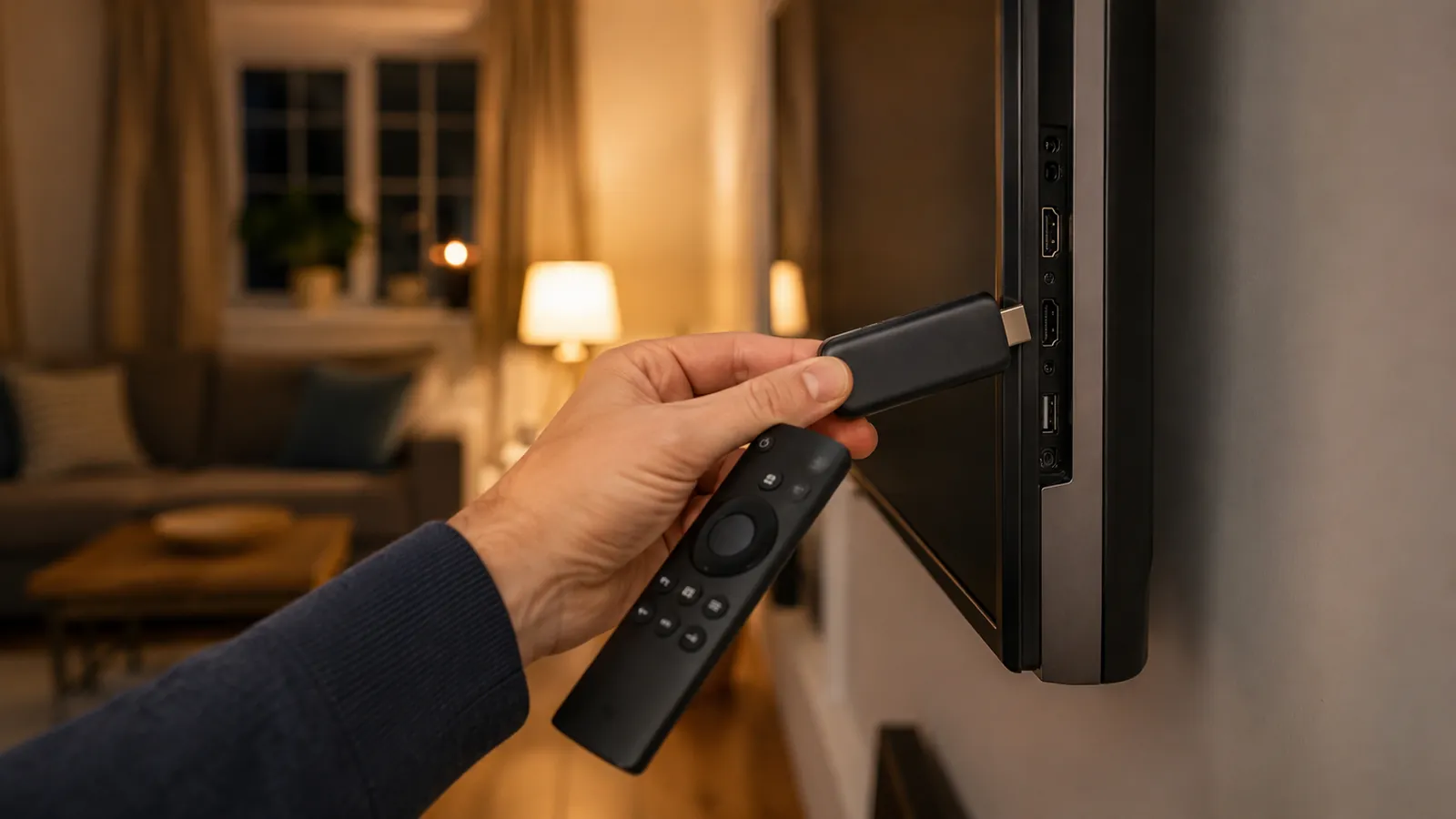
Older Firestick or Android box hardware can struggle to decode 4K smoothly even with a fast connection. If buffering only happens on one device, that device is usually the bottleneck.
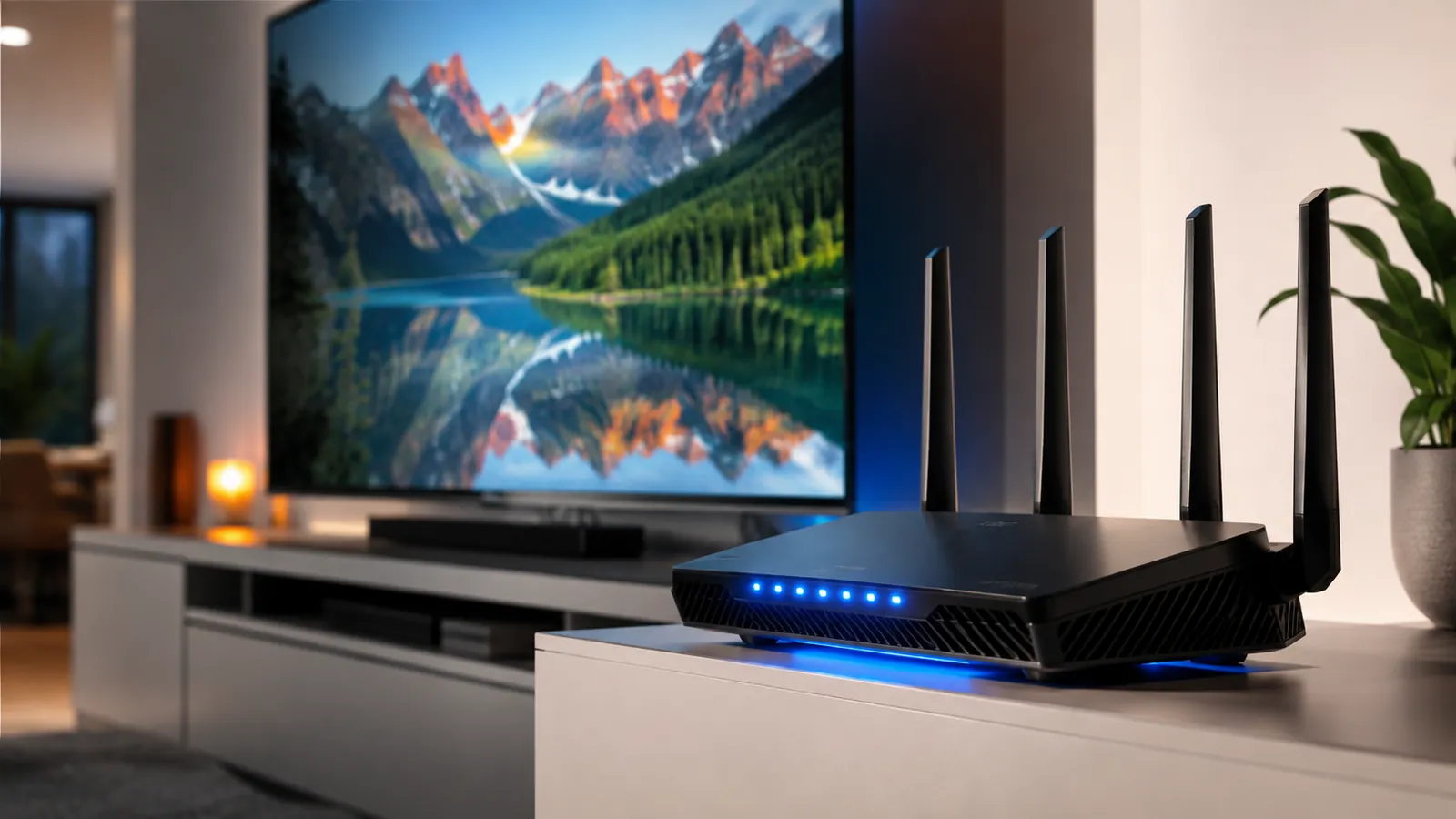
6. Restart your router periodically
Routers left running for weeks can develop memory issues that quietly degrade throughput. A reboot every week or two is a simple, effective habit.
7. Match stream quality to your connection
If your line genuinely can't sustain 4K, dropping to HD in your player app settings will usually eliminate buffering entirely with barely a visible quality difference on smaller screens.